Spreadfirefox Affiliate Button
Custom Search
Showing posts with label Backup. Show all posts

Tuesday, January 12, 2010

BakAbenaki

BakAbenaki is the freeware software that allows you to create safety copies of your data.
The software has been developed specifically to satisfy the following requirements:
  • CORRECTNESS: the software guarantees the copy of any type of data

  • efficiency: the copy of the data occurs in fast manner

  • USABILITY: graphic interface is simple and intuitive

  • PLATFORM-INDEPENDENT: bakabenaki is platform-independent. That means that it could be executed on all most common operating systems that supports java technology, such as Microsoft Windows and Linux. Accordingly the consumer can avoide useless reboot of the system and/or use different programs that cause considerable loss of time and money that has spent in the formation of employees.

Storms, negligence of personal, accidental deletion and internal or external attacks to us network are only some of the innumerable causes of hardware damages that involve loss of data from us personal computers. Accordingly, the problem has engaged a more and more importance in the industries and at home. In fact is disagreeable to suddenly lose all the industrial data or the photos of the last vacation.

BakAbenaki allows to resolve all these problems in a very fast mode, allowing to perform copies of of data in any format on some device, as external hard disk, usb pen, net disk or other.

The program could be executed without installation and can be used by any user independently from the adopted operating system.


Download

Saturday, June 27, 2009

TimeVault

TimeVault is a simple front-end for making snapshots of a set of directories. Snapshots are a copy of a directory structure or file at a certain point in time. Restore functionality is integrated into Nautilus - previous versions of a file or directory that has a snapshot can be accessed by examining the properties and selecting the 'Previous Versions' tab.

Snapshots are protected from accidental deletion or modification since they are read-only by default. The super-user can delete intermediate snapshots to save space, but files and directories that existed before or after the deletion will still be accessible.

A snapshot is a copy of a directory at a certain point in time. Snapshots don't use space for the files that haven't changed but instead simply add a link to the same data on disk. When a file (link) is deleted, the link count for the data on disk is decremented. When it reaches 0 the data is marked free in the allocation table and new data can then be written to those blocks. As most allocations of data have only 1 file that links to them data is usually freed when its file is deleted.

Only files are hard-linked this way. In most filesystems directory hardlinks are disallowed because they can cause endless recursion. Apple specifically modified their system by adding mandatory recursion detection to prevent infinite loops, ostensibly purely for their backup software.

Download

tar

Introduction to Tar

The Tar program provides the ability to create tar archives, as well as various other kinds of manipulation. For example, you can use Tar on previously created archives to extract files, to store additional files, or to update or list files which were already stored.

Initially, tar archives were used to store files conveniently on magnetic tape. The name "Tar" comes from this use; it stands for tape archiver. Despite the utility's name, Tar can direct its output to available devices, files, or other programs (using pipes), it can even access remote devices or files (as archives).

Additional information about the project, including links to the project development page and file downloads, is available from the GNU software directory.

Downloading Tar

Stable versions of GNU Tar can be found on in the subdirectory /gnu/tar/ on your favorite GNU mirror. For other ways to obtain Tar, please read How to get GNU Software

Latest intermediate snapshots are available from tar snapshot ftp. Alpha releases are distributed from alpha.gnu.org.

For information about CVS access, alpha releases, patches, etc., please see the project's home page.

rsync

rsync is an open source utility that provides fast incremental file transfer. rsync is freely available under the GNU General Public License and is currently being maintained by Wayne Davison.

If you are running (1) an xattr-enabled rsync older than 3.0.2, (2) a writable rsync daemon older than 3.0.0, or (3) a version of rsync older than 2.6.6, please see the rsync security advisory page.


Rsync version 3.0.6 released

May 8th, 2009

Rsync version 3.0.6 has been released. This is a bug-fix release.

See the release NEWS for the details of what changed since 3.0.5. The latest manpages are also available for both rsync and rsyncd.conf.

The source tar is available here: rsync-3.0.6.tar.gz (signature), with a tar file of the "patches" directory now released in a separate file: rsync-patches-3.0.6.tar.gz (signature),rsync-3.0.5-3.0.6.diffs.gz (signature). and the diffs from version 3.0.5 are available here:

rdiff-backup

rdiff-backup backs up one directory to another, possibly over a network. The target directory ends up a copy of the source directory, but extra reverse diffs are stored in a special subdirectory of that target directory, so you can still recover files lost some time ago. The idea is to combine the best features of a mirror and an incremental backup. rdiff-backup also preserves subdirectories, hard links, dev files, permissions, uid/gid ownership, modification times, extended attributes, acls, and resource forks. Also, rdiff-backup can operate in a bandwidth efficient manner over a pipe, like rsync. Thus you can use rdiff-backup and ssh to securely back a hard drive up to a remote location, and only the differences will be transmitted. Finally, rdiff-backup is easy to use and settings have sensical defaults.

Download:

rdiff-backup is GPLed (anyone can download it, redistribute it, etc.).

The keys used to sign the releases are available in the project members' keyring.

Mondo Rescue

Mondo Rescue is a GPL disaster recovery solution. It supports Linux (i386, x86_64, ia64) and FreeBSD (i386). It's packaged for multiple distributions (RedHat, RHEL, SuSE, SLES, Mandriva, Debian, Gentoo).

It supports tapes, disks, network and CD/DVD as backup media, multiple filesystems, LVM, software and hardware Raid.

You need it to be safe.

Download

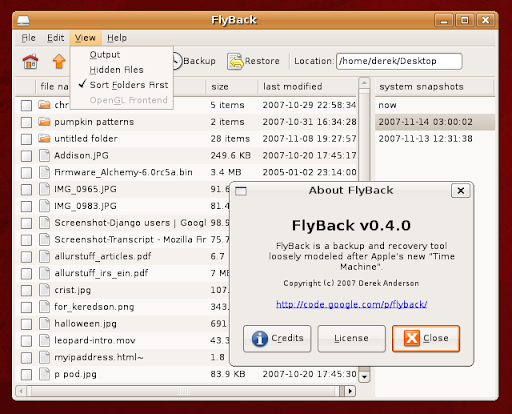
FlyBack - Apple's Time Machine for Linux

Apple's Time Machine is a great feature in their OS, and Linux has almost all of the required technology already built in to recreate it. This is a simple GUI to make it easy to use.

Website: http://flyback-project.org/

Instructions

To use, make sure you have the following packages installed:

Debian $ sudo apt-get install python python-glade2 python-gnome2 python-sqlite3 rsync
Ubuntu $ sudo apt-get install python python-glade2 python-gnome2 python-sqlite3 python-gconf rsync
Redhat/Fedora $ yum install pygtk2 gnome-python2-gconf pygtk2-libglade python-sqlite3

Then download:

or

Then change to the new directory ("flyback/src/" or "flyback/", depending on which you chose above) and run:

Documentation

Screenshots

Duplicity

Duplicity backs directories by producing encrypted tar-format volumes and uploading them to a remote or local file server. Because duplicity uses librsync, the incremental archives are space efficient and only record the parts of files that have changed since the last backup. Because duplicity uses GnuPG to encrypt and/or sign these archives, they will be safe from spying and/or modification by the server.

The duplicity package also includes the rdiffdir utility. Rdiffdir is an extension of librsync's rdiff to directories---it can be used to produce signatures and deltas of directories as well as regular files. These signatures and deltas are in GNU tar format.

Current development status

Duplicity is still in Beta. As any software, it may still have a few bugs, but will work for normal usage and is in use now for large personal and corporate backups. If you have questions try the mailing list. Bug reports and bug fixes can be entered through the Savannah project page.

In theory many protocols for connecting to a file server could be supported; so far ssh/scp, local file access, rsync, ftp, HSI, WebDAV, and Amazon S3 have been written. Currently duplicity supports deleted files, full unix permissions, directories, and symbolic links, fifos, and device files, but not hard links.

Download

Refer to the Changelog for overview of the recent changes and to GNU Changelog for the gory details from CVS.

The current stable release is 0.5.18, released May 20, 2009.

The current development release is 0.6.00, released June 6, 2009.

Older versions are also available for the budding historians in the downloads area.

Michael Terry maintains a Ubunta PPA (Hardy and Intrepid) for deja-dup and duplicity. Updates to the PPA will lag behind the above updates, so please be patient.

Edgar Soldin maintains ftplicity, a shell front end to duplicity for encrypted backups on non-trusted ftp servers.

All the code here is GPLed (free software). Duplicity is also part of the Fedora, Debian, and Ubuntu distributions of GNU/Linux.

Requirements

Duplicity requires a POSIX-like operating system. It is best used under GNU/Linux. It also requires:

If you install from the source package, you will also need:

  • Python development files, normally found in module 'python-dev'
  • librsync development files, normally found in module 'librsync-dev'

DirSync Pro

DirSync Pro (Directory Synchronize Pro) is a small, but powerful utility for file and folder synchronization. DirSync Pro can be used to synchronize the content of one or many folders recursively.

Using DirSync Pro you can make incremental backups. In this way you'll spare lots of time because you don't have to copy all the files each time you want to update your backup; only new/modified/larger files would be copied.

Use DirSync Pro to easily synchronize files from your desktop PC to your USB-stick (PDA, Notebook, ...). Use this USB-stick (PDA, Notebook, ...) to synchronize files to another desktop PC.

Unlike many other synchronization software, DirSync Pro is Open Source; it is 100% free of charge, 100% free of commercial text, 100% free of advertisements and 100% free of spyware. You can use it as long as you like, without any limitations in time or funcationality. You can freely distribute it according to GPL3.

DirSync Pro is programmed completely in platform independent Java™ so it can be run under nearly every modern operating system including Windows™, Linux™ and Macintosh™.

DirSync Pro has a user-friendly User Interface which helps you configure many options to your needs. You can use DirSync Pro also through the command line which makes it very flexible for running in batches.

Download

dar

Presentation

dar is a shell command that backs up directory trees and files. It has been tested under Linux, Windows, Solaris, FreeBSD, NetBSD, MacOS X and several other systems, it is released under the GNU General Public License (GPL). Since version 2.0.0 an Application Interface (API) is available, opening the way for external/independent Graphical User Interfaces (GUIs) like kdar. This API relies on the libdar library, which is the core part of DAR programs; as such, the API is released under the GPL. Consequently, to use the API, your program must be released under the GPL as well.

Features

A detailed list of features can be found in the documentation here.

Download

To get source code all is explained here for releases, here for pre-releases, here for Development
Binary packages are only available for Windows systems *and* released versions.

Binary package for Linux are generated by your distro's packagers, you should be able to fetch binary packages at your distro site
(Any good distro should provide a dar binary package ;-) Redhat, Suze, Gentoo, Ubuntu, are the one I know they do).
versions.

Cpio

GNU cpio copies files into or out of a cpio or tar archive. The archive can be another file on the disk, a magnetic tape, or a pipe.

GNU cpio supports the following archive formats: binary, old ASCII, new ASCII, crc, HPUX binary, HPUX old ASCII, old tar, and POSIX.1 tar. The tar format is provided for compatability with the tar program. By default, cpio creates binary format archives, for compatibility with older cpio programs. When extracting from archives, cpio automatically recognizes which kind of archive it is reading and can read archives created on machines with a different byte-order.

Downloading Cpio

GNU cpio can be found on http://ftp.gnu.org/gnu/cpio/ or one of the mirrors.

Alpha releases of the development version can be downloaded from alpha.gnu.org.

The project's homepage at Savannah is the place to look for the latest news and patches for the project.

Cobian Backup

Cobian Backup is a multi-threaded program that can be used to schedule and backup your files and directories from their original location to other directories/drives in the same computer or other computer in your network. FTP backup is also supported in both directions (download and upload).

Cobian Backup exists in two different versions: application and service. The program uses very few resources and can be running on the background on your system, checking your backup schedule and executing your backups when necessary.

Cobian Backup is not an usual backup application: it only copies your files and folders in original or compressed mode to other destination, creating a security copy as a result. So Cobian Backup can be better described as a "Scheduler for security copies". Cobian Backup supports several methods of compression and strong encryption.

Download

BackupPC

BackupPC is a high-performance, enterprise-grade system for backing up Linux and WinXX PCs and laptops to a server's disk. BackupPC is highly configurable and easy to install and maintain.

Given the ever decreasing cost of disks and raid systems, it is now practical and cost effective to backup a large number of machines onto a server's local disk or network storage. This is what BackupPC does. For some sites, this might be the complete backup solution. For other sites, additional permanent archives could be created by periodically backing up the server to tape. A variety of Open Source systems are available for doing backup to tape.

BackupPC is written in Perl and extracts backup data via SMB using Samba, tar over ssh/rsh/nfs, or rsync. It is robust, reliable, well documented and freely available as Open Source on SourceForge.

Features

* A clever pooling scheme minimizes disk storage and disk I/O. Identical files across multiple backups of the same or different PCs are stored only once resulting in substantial savings in disk storage and disk I/O.
* One example of disk use: 95 latops with each full backup averaging 3.6GB each, and each incremental averaging about 0.3GB. Storing three weekly full backups and six incremental backups per laptop is around 1200GB of raw data, but because of pooling and compression only 150GB is needed.
* Optional compression support further reducing disk storage. Since only new files (not already pooled) need to be compressed, there is only a modest impact on CPU time.
* No client-side software is needed. The standard smb protocol is used to extract backup data on WinXX clients. On linux clients, tar over ssh/rsh/nfs is used to backup the data. With version 2.0.0, rsync is also supported on any client that has rsync or rysncd.
* A powerful web (http/cgi) user interface allows administrators to view log files, configuration, current status and allows users to initiate and cancel backups and browse and restore files from backups.
* A full set of restore options is supported, including direct restore (via smbclient, tar, or rsync/rsyncd) or downloading a zip or tar file.
* Supports mobile environments where laptops are only intermittently connected to the network and have dynamic IP addresses (DHCP).
* Flexible configuration parameters allow multiple backups to be performed in parallel, specification of which shares to backup, which directories to backup or not backup, various schedules for full and incremental backups, schedules for email reminders to users and so on. Configuration parameters can be set system-wide or also on a per-PC basis.
* Users are sent periodic email reminders if their PC has not recently been backed up. Email content, timing and policies are configurable.
* Tested on Linux, Freenix and Solaris hosts, and Linux, Win95, Win98, Win2000 and WinXP clients.
* Detailed documentation.
* Open Source hosted by SourceForge and freely availble under GPL.

Areca

Backup Engine Features :

  • Archives compression (Zip & Zip64 format)
  • Archives encryption (AES128 & AES256 encryption algorithms)
  • Storage on local hard drive, network drive, USB key, FTP / FTPs server (with implicit and explicit SSL / TLS)
  • Source file filters (by extension, subdirectory, regular expression, size, date, status, with AND/OR operators)
  • Incremental, differential and full backup support
  • Archives merges / deletion : You can merge contiguous archives in one single archive or safely delete your latest archives.
  • As of date recovery : Areca allows you to recover your archives (or single files) as of a specific date.
  • Transaction mechanism : All critical processes (such as backups or merges) support a transaction mechanism (with commit / rollback management) which guarantees your backups' integrity.
  • Backup reports : Areca generates backup reports that can be stored on your disk or sent by email.
  • Post backup scripts : Areca can launch shell scripts after backup.
  • Files permissions, symbolic links and named pipes backup. (Linux only)
  • Support for delta backup (store only the modified parts of the files - not the whole files)

Graphical User Interface :

  • Archives content explorer. (including a 'find file in archives' feature)
  • Archive description : A manifest is associated to each archive, which contains various informations such as author, title, date, description, and some technical data.
  • File history explorer : Areca keeps track of your file's history (creation / modifications / deletion) over your archives.
  • Backup simulation : useful to check wether a backup is necessary
  • User's actions history : Areca keeps an history of all user's actions (archives deletion, merges, backups, recoveries).

Download

AMANDA

AMANDA, the Advanced Maryland Automatic Network Disk Archiver, is a backup system that allows the administrator to set up a single master backup server to back up multiple hosts over network to tape drives/changers or disks or optical media. Amanda uses native dump and/or GNU tar facilities and can back up a large number of workstations running multiple versions of Unix. Amanda uses Samba, Cygwin or a native Windows client to back up Microsoft Windows desktops and servers.

The most recent stable release is version 2.6.1p1, released on April 10, 2009. Download here!

Release Notes for 2.6.1p1:

  • amplot: better output.
    AMANDA, the Advanced Maryland Automatic Network Disk Archiver, is a backup system that allows the administrator to set up a single master backup server to back up multiple hosts over network to tape drives/changers or disks or optical media. Amanda uses native dump and/or GNU tar facilities and can back up a large number of workstations running multiple versions of Unix. Amanda uses Samba, Cygwin or a native Windows client to back up Microsoft Windows desktops and servers.

    The most recent stable release is version 2.6.1p1, released on April 10, 2009. Download here!

    Release Notes for 2.6.1p1:

    • amplot: better output.
    • Don't include genversion.h in distribution tarballs.
    • Many bugs fixed
      • S3 device driver
      • rait device driver
      • amstatus
      • configure
      • application-api
      • compilation on some platform
      • others small bug
  • Don't include genversion.h in distribution tarballs.
  • Many bugs fixed
    AMANDA, the Advanced Maryland Automatic Network Disk Archiver, is a backup system that allows the administrator to set up a single master backup server to back up multiple hosts over network to tape drives/changers or disks or optical media. Amanda uses native dump and/or GNU tar facilities and can back up a large number of workstations running multiple versions of Unix. Amanda uses Samba, Cygwin or a native Windows client to back up Microsoft Windows desktops and servers.

    The most recent stable release is version 2.6.1p1, released on April 10, 2009. Download here!

    Release Notes for 2.6.1p1:

    • amplot: better output.
      AMANDA, the Advanced Maryland Automatic Network Disk Archiver, is a backup system that allows the administrator to set up a single master backup server to back up multiple hosts over network to tape drives/changers or disks or optical media. Amanda uses native dump and/or GNU tar facilities and can back up a large number of workstations running multiple versions of Unix. Amanda uses Samba, Cygwin or a native Windows client to back up Microsoft Windows desktops and servers.

      The most recent stable release is version 2.6.1p1, released on April 10, 2009. Download here!

      Release Notes for 2.6.1p1:

      • amplot: better output.
      • Don't include genversion.h in distribution tarballs.
      • Many bugs fixed
        • S3 device driver
        • rait device driver
        • amstatus
        • configure
        • application-api
        • compilation on some platform
        • others small bug
    • Don't include genversion.h in distribution tarballs.
    • Many bugs fixed
      • S3 device driver
      • rait device driver
      • amstatus
      • configure
      • application-api
      • compilation on some platform
      • others small bug
    • S3 device driver
    • rait device driver
    • amstatus
    • configure
    • application-api
    • compilation on some platform
    • others small bug

Monday, March 9, 2009

Back In Time

Source : http://www.le-web.org

Back In Time is a simple backup system for Linux inspired from “flyback project” and “TimeVault”. The backup is done by taking snapshots of a specified set of directories.

Currently there are two GUI available: Gnome and KDE 4 (>= 4.1).

All you have to do is configure:

  • Where to save snapshot
  • What directories to backup
  • When backup should be done (manual, every hour, every day, every week, every month)

Table Of Contents

  1. Screenshots
  2. Documentation
    1. Getting Started
    2. Main Window
    3. Settings Dialog
    4. Snapshots Dialog
    5. Integration with Nautilus
  3. FAQ
  4. Change Log
  5. Download
  6. Ubuntu Hardy & Intrepid repository

Screenshots

Gnome
Main Window Settings Dialog Snapshots Dialog Snapshots Dialog (2)
KDE 4
Main Window Settings Dialog Snapshots Dialog Diff Options Dialog

Top

Documentation

Why did I write the application ? When I read about Apple’s TimeMachine I thought it’s nice tool to have. I searched for equivalent applications for Linux and I find TimeValut and FlyBack. I didn’t feel very comfortable with TimeVault, especialy with it’s timeline. FlyBack was almost what I was looking for: I wanted a Places/Bookmarks column and I wanted snapshots only when something changed (just to reduce the number of snapshots).

Keep in mind that Back In Time is just a GUI. The real magic is done by rsync (take snapshots and restore), diff (check if somethind changed) and cp (make hardlinks).

Back In Time acts as a “user mode” backup system. This means that you can backup/restore only folders you have write access to (actually you can backup read-only folders, but you can’t restore them).

A new snapshot is created only if something changed since the last snapshot (if any).

A snapshot contains all the files from the selected directories (except for exclude patterns). In order to reduce disk space it use hard\-links (if possible) between snapshots for unchanged files. This way a file of 10Mb, unchanged for 10 snapshots, will use only 10Mb on the disk.

When you restore a file ‘A’, if it already exists on the file system it will be renamed to ‘A.backup.’.

For automatic backup it use “cron” so there is no need for a daemon, but “cron” must be running.

Top

Getting Started

You can start the application in the following ways:

  • Applications Menu: System Tools > Back In Time
  • Command line:
backintime [ [--snapshots] path | --backup | --version | --help ]
  • path: go directly to the specified file or directory
  • -s, –snapshots: go directly to SnapshotsDialogs
  • -b, –backup: take a snapshot now (if needed)
  • -v, –version: show version and exit
  • -h, –help: show a small help and exit

Top

Main Window

Gnome KDE 4

The main window is divided in 3 lists:

  1. Timeline: allow you to navigate between ‘now’ and snapshots
  2. Places: allow to quickly navigate to special folders: home, root, bookmarks and directories to backup
  3. Files: allow to navigate through the file system at the moment specified in timeline list. Files can be opened (double-click) using gnome file association. Keep in mind that snapshots are ‘readonly’. You can sort items by name (folders always first), by size or by date.

If you right-click and item in the file list you will see the following menu:

  • Open the item using gnome-open
  • Copy selected item (you can paste it into your file-manager)
  • Snapshots: show all snapshots for the current file/directory
  • Restore (only for snapshots items) selected file/directory

Main toolbar (the one on the left) items are:

  • Take a new snapshot now
  • Set snapshot name
  • Remove snapshot
  • Show configure dialog
  • Show about dialog
  • Show help
  • Quit the application

Files toolbar (the one on the right) items are:

  • Go to parent directory
  • Current path
  • Show/Hide hidden (.*) and backup (*~) files
  • Restore current file/directory
  • Copy current file/directory
  • Show all snapshots for the current file/directory

Top

Settings Dialog

Gnome KDE 4

Where to save snapshots is self-explaining.

What to backup define the directories you want to backup. From this directories you can exclude some files/directories using exclude pattern. By default it exclude hidden (”.*”) and “*.backup*” files/directories.

Automatic backup can be set to: none (default), every 5 minutes, every 10 minutes, every hour, every day, every week, every month. If your backup directory is on a removable drive (ex: usb-drive) it is recommended to set automatic backup to none and take manual snapshots when the drive is plugged.

You can automatically remove snapshots older then a specific date or if the free space is less then a specified value. By default automatic remove don’t remove named snapshots.

Top

Snapshots Dialog

Gnome KDE 4

Show all snapshots for a specific file or directory.

Double-click an item in the snapshots list to open it with gnome file associations.

When you select an item, you can (from right-click menu or from toolbar and buttons):

  • jump to
  • copy to clipboard
  • compare it with another snapshot (by default it use meld, but you can change this from ‘Diff Options’)
  • restore it (only for snapshots)

Top

Integration with Nautilus

It is not are “real” integration with Nautilus but it is simple to setup.

You need to install nautilus-actions. On Ubuntu you can install it with the command:

sudo apt-get install nautilus-actions

Now just create an action from System menu: Preferences > Nautilus Actions Configuration.

Step 1. Click Add button

Step 2. Menu Item & Action Tab

Parameters:

  • %M: go to specified path
  • –snapshots %M: go to SnapshotsDialog

Step 3. Conditions Tab

Step 4. Advanced conditions Tab

Step 5. Click OK button, and you should see the new action in actions list


Ubuntu Hardy & Intrepid repository

I setup a small repository to make updates easier.

You need to add the following line to your apt sources file (/etc/apt/sources.list)

deb http://www.le-web.org/repository2 stable main

and then add the GPG key information:

wget http://www.le-web.org/repository2/le-web.key
sudo apt-key add le-web.key

Then to install the the application for Gnome:

sudo apt-get update
sudo apt-get install backintime-common backintime-gnome

or KDE4 (>= 4.1):

sudo apt-get update
sudo apt-get install backintime-common backintime-kde4