The Slackware Linux operating system is a powerful platform for Intel-based computers. It is designed to be stable, secure, and functional as both a high-end server and powerful workstation.
This book is designed to get you started with the Slackware Linux operating system. It’s not meant to cover every single aspect of the distribution, but rather to show what it is capable of and give you a basic working knowledge of the system.
As you gain experience with Slackware Linux, we hope you find this book to be a handy reference. We also hope you’ll lend it to all of your friends when they come asking about that cool Slackware Linux operating system you’re running.
While this book may not an edge-of-your-seat novel, we certainly tried to make it as entertaining as possible. With any luck, we’ll get a movie deal. Of course, we also hope you are able to learn from it and find it useful.


Custom Search
Sunday, November 30, 2008

Saturday, November 29, 2008
Sony Ericsson P1i Mobile Phone GPRS/UMTS Linux How-To
This how-to helps you use your Sony Ericsson P1i mobile phone with Linux. I have tested it with P1i, an USB cable, and the Finnish operator Indosat Mentari.
Do the following to use the phone for your network access in Linux:
1. Make sure your phone works first on its with Internet. Launch a browser, it should work with any web site and not just with WAP. This will require configuration of an Internet access profile on your phone. Typically, you get it pre-installed or you can ask for an SMS that sets it up from your operator.
2. Take the cable that came with the phone, and plug it into the phone and the USB port in your computer. This will your computer to detect the phone using USB. It comes up as a modem.
3. Configure PPP to know about a peer on the other side of that modem. Put this into your /etc/ppp/peers/gprs file:
debug debug debug
#nodetach
updetach
connect "/usr/sbin/chat -v -f /etc/chatscripts/gprs-connect"
disconnect "/usr/sbin/chat -v -f /etc/chatscripts/gprs-disconnect"
#/dev/rfcomm0
/dev/ttyACM1
460800
usepeerdns
defaultroute
persist
noipdefault
noauth
4. Create the necessary chatscripts so that PPP can start. These go into two files shown below. The hard part in the first one is selecting the right number instead of "1" in the line "OK ATD*99***1#". I put 1 there because my working Internet access profile in the phone is the first one. You may experiment with different numbers if you have a problem.
::::::::::::::
/etc/chatscripts/gprs-connect
::::::::::::::
TIMEOUT 5
ECHO ON
ABORT '\nBUSY\r'
ABORT '\nERROR\r'
ABORT '\nNO ANSWER\r'
ABORT '\nNO CARRIER\r'
ABORT '\nNO DIALTONE\r'
ABORT '\nRINGING\r\n\r\nRINGING\r'
'' \rAT
TIMEOUT 12
SAY "Press CTRL-C to close the connection at any stage!"
SAY "\ndefining PDP context...\n"
OK ATH
OK ATE1
OK ATD*99***1#
TIMEOUT 22
SAY "\nwaiting for connect...\n"
CONNECT ""
SAY "\nConnected."
SAY "\nIf the following ppp negotiations fail,\n"
SAY "try restarting the phone.\n"
::::::::::::::
/etc/chatscripts/gprs-disconnect
::::::::::::::
ABORT "BUSY"
ABORT "ERROR"
ABORT "NO DIALTONE"
SAY "\nSending break to the modem\n"
"" "\K"
"" "+++ATH"
SAY "\nPDP context detached\n"
5. Turn on PPP by typing "pppd call gprs" in your root shell window. You should see debugs showing what happened.
6. Test that it works. Note that at least for my operator, ping does not work in testing, because the operator filters ICMP. Start with a simple web page. Please make sure that you turned off other interface with ifconfig eth0 down etc before you started in Step 5 -- otherwise you'll have a problem.
I would like to thank Jari Arrkho for helping me get my GPRS connection up and running.
Do the following to use the phone for your network access in Linux:
1. Make sure your phone works first on its with Internet. Launch a browser, it should work with any web site and not just with WAP. This will require configuration of an Internet access profile on your phone. Typically, you get it pre-installed or you can ask for an SMS that sets it up from your operator.
2. Take the cable that came with the phone, and plug it into the phone and the USB port in your computer. This will your computer to detect the phone using USB. It comes up as a modem.
3. Configure PPP to know about a peer on the other side of that modem. Put this into your /etc/ppp/peers/gprs file:
debug debug debug
#nodetach
updetach
connect "/usr/sbin/chat -v -f /etc/chatscripts/gprs-connect"
disconnect "/usr/sbin/chat -v -f /etc/chatscripts/gprs-disconnect"
#/dev/rfcomm0
/dev/ttyACM1
460800
usepeerdns
defaultroute
persist
noipdefault
noauth
4. Create the necessary chatscripts so that PPP can start. These go into two files shown below. The hard part in the first one is selecting the right number instead of "1" in the line "OK ATD*99***1#". I put 1 there because my working Internet access profile in the phone is the first one. You may experiment with different numbers if you have a problem.
::::::::::::::
/etc/chatscripts/gprs-connect
::::::::::::::
TIMEOUT 5
ECHO ON
ABORT '\nBUSY\r'
ABORT '\nERROR\r'
ABORT '\nNO ANSWER\r'
ABORT '\nNO CARRIER\r'
ABORT '\nNO DIALTONE\r'
ABORT '\nRINGING\r\n\r\nRINGING\r'
'' \rAT
TIMEOUT 12
SAY "Press CTRL-C to close the connection at any stage!"
SAY "\ndefining PDP context...\n"
OK ATH
OK ATE1
OK ATD*99***1#
TIMEOUT 22
SAY "\nwaiting for connect...\n"
CONNECT ""
SAY "\nConnected."
SAY "\nIf the following ppp negotiations fail,\n"
SAY "try restarting the phone.\n"
::::::::::::::
/etc/chatscripts/gprs-disconnect
::::::::::::::
ABORT "BUSY"
ABORT "ERROR"
ABORT "NO DIALTONE"
SAY "\nSending break to the modem\n"
"" "\K"
"" "+++ATH"
SAY "\nPDP context detached\n"
5. Turn on PPP by typing "pppd call gprs" in your root shell window. You should see debugs showing what happened.
6. Test that it works. Note that at least for my operator, ping does not work in testing, because the operator filters ICMP. Start with a simple web page. Please make sure that you turned off other interface with ifconfig eth0 down etc before you started in Step 5 -- otherwise you'll have a problem.
I would like to thank Jari Arrkho for helping me get my GPRS connection up and running.
Sunday, November 16, 2008
Add Applications to the Startup Programs
Thanks to http://www.tech-recipes.com
By adding an application to the Startup Programs, that application will automatically run once Ubuntu has finished booting. This is quite useful for applications such as Gmail Notifier that have a small footprint but provide a useful function to the user.
1. Click System, mouseover Preferences and select Sessions.
2. Under the Startup Programs, click the Add button.
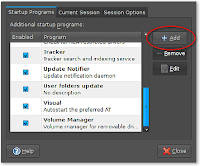
3. Input the Name and the Command that executes the desired application in the appropriate text boxes. If you aren’t sure of the command, click the Browse button and go to the executable. For example, the command you would input for the Gmail Notifier is gmail-notify.

4. Click OK.
5. Click the Close button to exit the Sessions window.
By adding an application to the Startup Programs, that application will automatically run once Ubuntu has finished booting. This is quite useful for applications such as Gmail Notifier that have a small footprint but provide a useful function to the user.
1. Click System, mouseover Preferences and select Sessions.
2. Under the Startup Programs, click the Add button.

3. Input the Name and the Command that executes the desired application in the appropriate text boxes. If you aren’t sure of the command, click the Browse button and go to the executable. For example, the command you would input for the Gmail Notifier is gmail-notify.

4. Click OK.
5. Click the Close button to exit the Sessions window.
Saturday, November 15, 2008
PERIODIC CALENDAR
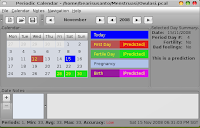
Periodic Calendar is a GUI utility which can be used to:
* track women menstrual cycles
* calculate the fertile days when the probability to get pregnant is high
* calculate the "safe" days when the probability to get pregnant is minimal
* predict the day of the next menstruations
* record the pregnancy
* calculate the pregnancy weeks
* predict the baby's birth date
* record the personal notes for any day
At this point the fertility prediction is based on the calendar method only which is not very precise. It is not recommended to use this method alone for the natural family planing.
In the future versions it is planned to add the support for the BBT (Basal Body Temperature) method which in addition to the calendar method provides more precise predictions. However, this method requires more efforts (daily temperature measurements) while the calendar method requires only to remember the cycle start dates and enter them somehow into the program. The effectiveness of the BBT method itself is about 80-90%. Combining more than one method makes the predictions more effective.
Other self-observations methods I know are really hard to support on a computer.
THIS PROGRAM PREDICTIONS IN NO CASES SHOULD BE USED AS THE FINAL. THE METHODS USED ARE NOT 100% PRECISE FOR ALL WOMEN.
This program is free software; you can redistribute it and/or modify it under the terms of the GNU General Public License as published by the Free Software Foundation; either version 2 of the License, or (at your option) any later version.
This program is distributed in the hope that it will be useful, but WITHOUT ANY WARRANTY; without even the implied warranty of MERCHANTABILITY or FITNESS FOR A PARTICULAR PURPOSE. See the GNU General Public License for more details.
You should have received a copy of the GNU General Public License along with this program; if not, write to the Free Software Foundation, Inc., 59 Temple Place - Suite 330, Boston, MA 02111-1307, USA.
* track women menstrual cycles
* calculate the fertile days when the probability to get pregnant is high
* calculate the "safe" days when the probability to get pregnant is minimal
* predict the day of the next menstruations
* record the pregnancy
* calculate the pregnancy weeks
* predict the baby's birth date
* record the personal notes for any day
At this point the fertility prediction is based on the calendar method only which is not very precise. It is not recommended to use this method alone for the natural family planing.
In the future versions it is planned to add the support for the BBT (Basal Body Temperature) method which in addition to the calendar method provides more precise predictions. However, this method requires more efforts (daily temperature measurements) while the calendar method requires only to remember the cycle start dates and enter them somehow into the program. The effectiveness of the BBT method itself is about 80-90%. Combining more than one method makes the predictions more effective.
Other self-observations methods I know are really hard to support on a computer.
THIS PROGRAM PREDICTIONS IN NO CASES SHOULD BE USED AS THE FINAL. THE METHODS USED ARE NOT 100% PRECISE FOR ALL WOMEN.
This program is free software; you can redistribute it and/or modify it under the terms of the GNU General Public License as published by the Free Software Foundation; either version 2 of the License, or (at your option) any later version.
This program is distributed in the hope that it will be useful, but WITHOUT ANY WARRANTY; without even the implied warranty of MERCHANTABILITY or FITNESS FOR A PARTICULAR PURPOSE. See the GNU General Public License for more details.
You should have received a copy of the GNU General Public License along with this program; if not, write to the Free Software Foundation, Inc., 59 Temple Place - Suite 330, Boston, MA 02111-1307, USA.

Friday, November 7, 2008
How To Upgrade Ubuntu 8.04 (Hardy Heron) To 8.10 (Intrepid Ibex)
Thanks to http://www.howtoforge.com
This guide shows how you can upgrade your Ubuntu 8.04 desktop and server installations to Ubuntu 8.10.
This document comes without warranty of any kind! I do not issue any guarantee that this will work for you!
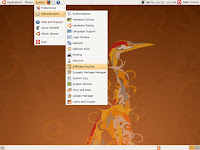
1. Go to System > Administration > Software Sources:
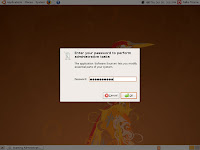
2. Type in your password:
3. In the Software Sources window, go to the Updates tab and select Normal releases in the Show new distribution releases drop-down menu; then close the Software Sources window:
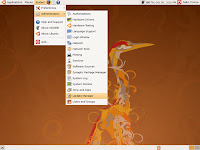
4. Now start the Update Manager (System > Administration > Update Manager):
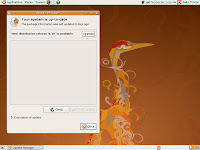
5. The Update Manager should show that a new distribution release (8.10) is available. Click on the Upgrade button to start the distribution upgrade:
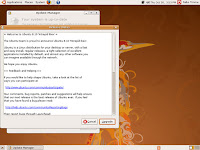
6. A window with the release notes for 8.10 comes up. Click on Upgrade again:
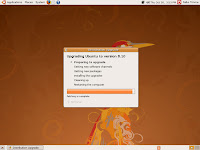
7. The upgrade is being prepared:
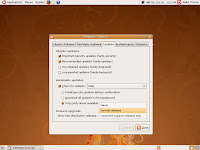
8. Click on Start Upgrade to finally begin with the upgrade process:
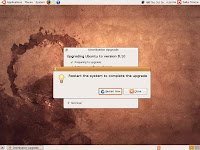
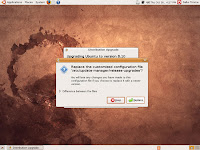
9. Replace /etc/update-manager/release-upgrades:
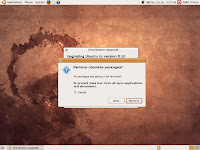
10. At the end of the upgrade process, you should remove obsolete packages:
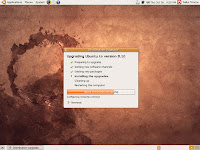
11. The system needs to be rebooted to complete the upgrade, therefore click on Restart Now:
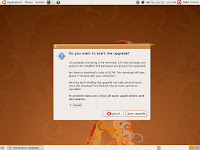
12. After the reboot, you can use your new Ubuntu 8.10 desktop
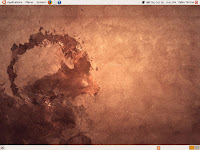
This guide shows how you can upgrade your Ubuntu 8.04 desktop and server installations to Ubuntu 8.10.
This document comes without warranty of any kind! I do not issue any guarantee that this will work for you!
1. Go to System > Administration > Software Sources:

2. Type in your password:

3. In the Software Sources window, go to the Updates tab and select Normal releases in the Show new distribution releases drop-down menu; then close the Software Sources window:

4. Now start the Update Manager (System > Administration > Update Manager):

5. The Update Manager should show that a new distribution release (8.10) is available. Click on the Upgrade button to start the distribution upgrade:

6. A window with the release notes for 8.10 comes up. Click on Upgrade again:

7. The upgrade is being prepared:

8. Click on Start Upgrade to finally begin with the upgrade process:


9. Replace /etc/update-manager/release-upgrades:

10. At the end of the upgrade process, you should remove obsolete packages:

11. The system needs to be rebooted to complete the upgrade, therefore click on Restart Now:

12. After the reboot, you can use your new Ubuntu 8.10 desktop

Thursday, November 6, 2008
Shreading Data
Data which has been deleted maybe could be recovered with recovery software, It could be dangerous if there is an important file that somebody couldn't know the contents.
To reduce the risk, that someone could recovered our files, we can do deleting process permanently with using software utility which have permanent delete ability. In Linux platform, we have utility like SHRED and WIPE.
Here is the usage the two utility.
1.Deleting data using SHRED
I take a sample to delete USB Flashdisk (UFD) permanently.
- Use command fdisk -l to know the UFD location
root@hardy:/# fdisk -l
...
Disk /dev/sdb: 1026 MB, 1026555392 bytes
129 heads, 16 sectors/track, 971 cylinders
Units = cylinders of 2064 * 512 = 1056768 bytes
Disk identifier: 0x28eff17f
Device Boot Start End Blocks Id System
/dev/sdb1 * 1 972 1002487+ b W95 FAT32
Partition 1 has different physical/logical endings:
phys=(977, 128, 16) logical=(971, 52, 15)
- From the information in the above, we knows that UFD is located at /dev/sdb1.
Before we doing manual delete, do umount the UFD from system.
First, see the mount UFD partition location use command df -h
root@hardy:/# df -h
...
/dev/sdb1 978M 347M 631M 36% /media/BENNY
- Now, we can permanently delete our file using shred command
root@hardy:/# shred --verbose -u /dev/sdb1
...
shred: /dev/sdb1: pass 1/25 (random) ... 126MiB/3.8GiB 3%
...
- For default, command above will do overwrite iteration 25 times. If, this is too long we
could use option -n
root@hardy:/# shred --verbose -u -n 5 /dev/sdb1
- Now, all data in UFD is permanently deleted. To using UFD again, we have to format it
2.Deleting data using WIPE
Except shred, we have wipe command which the have ability like shred.
root@hardy:/# wipe -kq /dev/sdb1
Okay to WIPE 1 special file ? (Yes/No) yes
Wiping /dev/sdb1, pass 0 in quick mode [ 3884 / 1026555392]
To know the detail of wipe command, we could see from the manual
root@hardy:/#man wipe
To reduce the risk, that someone could recovered our files, we can do deleting process permanently with using software utility which have permanent delete ability. In Linux platform, we have utility like SHRED and WIPE.
Here is the usage the two utility.
1.Deleting data using SHRED
I take a sample to delete USB Flashdisk (UFD) permanently.
- Use command fdisk -l to know the UFD location
root@hardy:/# fdisk -l
...
Disk /dev/sdb: 1026 MB, 1026555392 bytes
129 heads, 16 sectors/track, 971 cylinders
Units = cylinders of 2064 * 512 = 1056768 bytes
Disk identifier: 0x28eff17f
Device Boot Start End Blocks Id System
/dev/sdb1 * 1 972 1002487+ b W95 FAT32
Partition 1 has different physical/logical endings:
phys=(977, 128, 16) logical=(971, 52, 15)
- From the information in the above, we knows that UFD is located at /dev/sdb1.
Before we doing manual delete, do umount the UFD from system.
First, see the mount UFD partition location use command df -h
root@hardy:/# df -h
...
/dev/sdb1 978M 347M 631M 36% /media/BENNY
- Now, we can permanently delete our file using shred command
root@hardy:/# shred --verbose -u /dev/sdb1
...
shred: /dev/sdb1: pass 1/25 (random) ... 126MiB/3.8GiB 3%
...
- For default, command above will do overwrite iteration 25 times. If, this is too long we
could use option -n
root@hardy:/# shred --verbose -u -n 5 /dev/sdb1
- Now, all data in UFD is permanently deleted. To using UFD again, we have to format it
2.Deleting data using WIPE
Except shred, we have wipe command which the have ability like shred.
root@hardy:/# wipe -kq /dev/sdb1
Okay to WIPE 1 special file ? (Yes/No) yes
Wiping /dev/sdb1, pass 0 in quick mode [ 3884 / 1026555392]
To know the detail of wipe command, we could see from the manual
root@hardy:/#man wipe
Friday, October 31, 2008
SPLIT AND JOIN FILES
We have a file which size is too big to save in USB Flash drive.
To split it to be a small size so its fit to store in USB is easy in linux platform, use "split" command which has been bundled in GNU Coreutils.
1. As example, we have an iso file (ubuntu-8.04-desktop-i386.iso) which size is 699 Mb
root@hardy:/home/bearisusanto/test# ls -alh
total 700M
-rwx------ 1 bearisusanto root 700M 2008-06-02 03:22 ubuntu-8.04-desktop-i386.iso
2. Before doing split process, first make MD5 file from ubuntu-8.04-desktop-i386.iso for ensuring that there is not a change for the file when its join again
root@hardy:/home/bearisusanto/test# md5sum ubuntu-8.04-desktop-i386.iso > MD5SUM.txt
root@hardy:/home/bearisusanto/test# cat MD5SUM.txt
8895167a794c5d8dedcc312fc62f1f1f ubuntu-8.04-desktop-i386.iso
3. For splitting ubuntu-8.04-desktop-i386.iso to be a file which the size maximal 400Mb for each file, we type the command
root@hardy:/home/bearisusanto/test# split -d -b 400m ubuntu-8.04-desktop-i386.iso ubuntu-8.04-desktop-i386.iso.part
4. If we check in the directory, there is two 2 which is the result from splitting process
-rwx------ 1 bearisusanto root 700M 2008-06-02 03:22 ubuntu-8.04-desktop-i386.iso
-rw-r--r-- 1 root root 400M 2008-10-31 23:13 ubuntu-8.04-desktop-i386.iso.part00
-rw-r--r-- 1 root root 300M 2008-10-31 23:13 ubuntu-8.04-desktop-i386.iso.part01
5. To join the two file to be one file as the same with the original file, we use "cat" command but the original have to be deleted first.
root@hardy:/home/bearisusanto/test# rm ubuntu-8.04-desktop-i386.iso
root@hardy:/home/bearisusanto/test# cat ubuntu-8.04-desktop-i386.iso.part00 ubuntu-8.04-desktop-i386.iso.part01 > ubuntu-8.04-desktop-i386.iso
6. For ensuring that there is no difference with the original file, we have to validate with using MD5SUM.txt which have made for the first time.
root@hardy:/home/bearisusanto/test# md5sum -c MD5SUM.txt
ubuntu-8.04-desktop-i386.iso: OK
To split it to be a small size so its fit to store in USB is easy in linux platform, use "split" command which has been bundled in GNU Coreutils.
1. As example, we have an iso file (ubuntu-8.04-desktop-i386.iso) which size is 699 Mb
root@hardy:/home/bearisusanto/test# ls -alh
total 700M
-rwx------ 1 bearisusanto root 700M 2008-06-02 03:22 ubuntu-8.04-desktop-i386.iso
2. Before doing split process, first make MD5 file from ubuntu-8.04-desktop-i386.iso for ensuring that there is not a change for the file when its join again
root@hardy:/home/bearisusanto/test# md5sum ubuntu-8.04-desktop-i386.iso > MD5SUM.txt
root@hardy:/home/bearisusanto/test# cat MD5SUM.txt
8895167a794c5d8dedcc312fc62f1f1f ubuntu-8.04-desktop-i386.iso
3. For splitting ubuntu-8.04-desktop-i386.iso to be a file which the size maximal 400Mb for each file, we type the command
root@hardy:/home/bearisusanto/test# split -d -b 400m ubuntu-8.04-desktop-i386.iso ubuntu-8.04-desktop-i386.iso.part
4. If we check in the directory, there is two 2 which is the result from splitting process
-rwx------ 1 bearisusanto root 700M 2008-06-02 03:22 ubuntu-8.04-desktop-i386.iso
-rw-r--r-- 1 root root 400M 2008-10-31 23:13 ubuntu-8.04-desktop-i386.iso.part00
-rw-r--r-- 1 root root 300M 2008-10-31 23:13 ubuntu-8.04-desktop-i386.iso.part01
5. To join the two file to be one file as the same with the original file, we use "cat" command but the original have to be deleted first.
root@hardy:/home/bearisusanto/test# rm ubuntu-8.04-desktop-i386.iso
root@hardy:/home/bearisusanto/test# cat ubuntu-8.04-desktop-i386.iso.part00 ubuntu-8.04-desktop-i386.iso.part01 > ubuntu-8.04-desktop-i386.iso
6. For ensuring that there is no difference with the original file, we have to validate with using MD5SUM.txt which have made for the first time.
root@hardy:/home/bearisusanto/test# md5sum -c MD5SUM.txt
ubuntu-8.04-desktop-i386.iso: OK
Wednesday, October 29, 2008
Speed up ubuntu boot process
Source : http://ubuntuforums.org/
This HowTo is for those who complaint ubuntu boot-up speed is pretty slow but not willing to install any alternative tools to speed up. The way I use here is not the altimate solution by any means but it does make differences and it does work. Everything done below is by tuning the boot process itself and because everyone's computer might be different, there is a little risk that something below might break your system. Take your own judgment before you perform a change and always good to do a backup for the /etc dir.
**This HowTo is mainly for laptops and desktops, not for servers.**
Due to Ubuntu Edgy Eft (6.10) is using upstart to manage the init process and it already has reducing boot time built in mind, many things have been changed. This thread is mainly for any ubuntu version older than 6.10. For how to customize upstart, please refer to upstart threads in this forum. The following is a very interesting and useful WiKi on how to further speed up the boot process by taking out some useless bootup/shutdown processes...
wiki.ubuntu.com/Teardown
Suggestions for this HowTo:
1. I hope you learn something from here but not just a simple copy. So please, **DO NOT** follow exactly what I did and copy to your box. Read the descriptions of services and use your own judgment to determine if you need to keep them on or not. For instance, I turned GDM off on mine to boot to console, but if you do not feel confortable to see console at all, you should keep GDM or KDM on to boot directly to GUI.
2. If you have a question about a boot up service and not really sure what it does, post a question here and see if anybody can help you. Ask before you do if you don't know. The bottom line to be safe is to leave a service on rather than turn it off if you do not understand.
3. If you see a boot up service that you have but not in here, let us know what it does just like what I did here - give some descriptions and suggestions on whether it should be on or off on a normal laptop or desktop environment.
I. Install a tool - sysv-rc-conf. It is a perl based boot process adjustment tool.
**This HowTo is mainly for laptops and desktops, not for servers.**
Due to Ubuntu Edgy Eft (6.10) is using upstart to manage the init process and it already has reducing boot time built in mind, many things have been changed. This thread is mainly for any ubuntu version older than 6.10. For how to customize upstart, please refer to upstart threads in this forum. The following is a very interesting and useful WiKi on how to further speed up the boot process by taking out some useless bootup/shutdown processes...
wiki.ubuntu.com/Teardown
Suggestions for this HowTo:
1. I hope you learn something from here but not just a simple copy. So please, **DO NOT** follow exactly what I did and copy to your box. Read the descriptions of services and use your own judgment to determine if you need to keep them on or not. For instance, I turned GDM off on mine to boot to console, but if you do not feel confortable to see console at all, you should keep GDM or KDM on to boot directly to GUI.
2. If you have a question about a boot up service and not really sure what it does, post a question here and see if anybody can help you. Ask before you do if you don't know. The bottom line to be safe is to leave a service on rather than turn it off if you do not understand.
3. If you see a boot up service that you have but not in here, let us know what it does just like what I did here - give some descriptions and suggestions on whether it should be on or off on a normal laptop or desktop environment.
I. Install a tool - sysv-rc-conf. It is a perl based boot process adjustment tool.
Code:
sudo apt-get update
sudo apt-get install sysv-rc-conf
It gives you a way to esaily config the boot process and runlevel configuration, but its not necessary if you want to do it manually by linking/unlinking the files... Its up to you.
II. Ok, that's all we need. Now let's fire it up by
II. Ok, that's all we need. Now let's fire it up by
Code:
sudo sysv-rc-conf
and analyze each service one by one. **Note:** Some services I have here you might not have, perfectly ok. If some you have but I don't, then you will need to investigate on your own or ask here... But this HowTo should cover most of them...
Throw a littel bit of runlevel knowledge here before we start messing them up.... All the boot processes are executed in sequence as following:
runlevel S: the first runlevel in boot process. /etc/init.d/rcS script will be invoked to start and all the processes underneath /etc/rcS.d will be executed.
runlevel 1: the single user mode. All processes underneath /etc/rc1.d will be executed.
runlevel 2,3,4,5: in debain system, the multi-user env, may not may not include GUI. The same, processes under each of the corresponding dirs will be run. **Note** this is different than RedHat, SuSE, and other RPM based systems.
runlevel 0: computer shutdown.
runlevel 6: computer reboot.
ok, back to sysv-rc-conf:
1. acpi-support - You'd better leave it on the default runlevel. The default is 2,3,4,5.
2. acpid - The acpi daemon. These two are for power management, quite important for laptop and desktop computers, so leave them on. The default is 2,3,4,5
3. alsa - If you use alsa sound subsystem, yes leave it on. But if you have the service below, its safe to be off. The default is off when alsa-utils is on.
4. alsa-utils - On my system, this service supercedes the alsa, so I turn off the alsa and turn this on at S level. **Note**, I mean "turn off" is to remove all "X" at all runlevels. If you don't have it on your system, no problem. Just keep going. The default is S runlevel.
5. anacron - A cron subsystem that executes any cron jobs not being executed when the time is on. Most likely you've probably turned your computer off when a certain cron job time is ready. For example, updatedb is scheduled at 2am everyday, but at that moment, you computer is off, then if anacron service is on, it will try to catch up that updatedb cron... I turn it off cause it didn't turn my laptop off very offen, but its totally up to you for this one. The default is 2,3,4,5
6. apmd - This is the one that confused me a quite bit. I have acpid on already and what's the benefits of having apmd on too? If you computer is not that old which can't even support acpi, then you may try to turn this off. I did anyway. The default is 2,3,4,5
7. atd - like cron, a job scheduler. I turned it off. The default is 2,3,4,5
8. binfmt-support - Kernel supports other format of binary files. I left it on. The default is 2,3,4,5
9. bluez-utiles - I turned it off. I don't have any bluetooth devices. The default is 2,3,4,5
10. bootlogd - Leave it on. The default is S.
11. cron - Leave it on. The default is 2,3,4,5
12. cupsys - subsystem to manager your printer. I don't have so I turned it off, but if you do, just leave it on. The default is 2,3,4,5
13. dbus - Message bus system. Very important, leave it on. The default is 2,3,4,5
14. dns-clean - Mainly for cleaning up the dns info when using dial-up connection. I don't use dial up, so I turn it off. The default is S.
15. evms - Enterprise Volumn Management system. I turned it off. The default is S.
16. fetchmail - A mail receving daemon. I turned it off. The default is 2,3,4,5
17. gdm - The gnome desktop manager. I turned it off anyway since I get use to boot to console first. This is up to you if you want to boot directly to GUI. The default is 2,3,4,5
18. gdomap - Actually I have no idea why this one should on. I didn't see any other systems have this daemon, so I turned it off and I don't feel I lose anything. Any benefits to have it on a loptop or desktop? The default is 2,3,4,5
19. gpm - Mouse support for console. If you feel you'd better have a mouse on console, go turn it on at runlevel 1 and 2. That's all you need. The default is 2,3,4,5
20. halt - Don't change it. The default is 0.
21. hdparm - tuning harddisk script. I removed the 2,3,4,5 runlevel but add it to S runlevel. I feel that opening DMA, 32bit I/O, etc eariler will benefit the rest of the processes. Also I changed the original script to a very simple one that I made myself. I feel useless to put all those redundant checks if I know what I am doing. The configuration file is /etc/hdparm.conf. The default is 2,3,4,5
22. hibernate - If your system support hibernate, leave it on. Otherwise, its useless for you. The default is S.
23. hotkey-setup - This daemon setup some hotkey mappings for Laptop. Manufacturers supported are: HP, Acer, ASUS, Sony, Dell, and IBM. If you have a laptop in those brands, you can leave it on, otherwise, this might not have any benefits for you. The default is 2,3,4,5
24. hotplug and hotplug-net #activating hotplug subsystems takes time. I'd consider to turn them off. I did some changes in my /etc/network/interfaces file. Instead of mapping my wireless card during hotplug process, I set it up to auto. So I can turn them off. I've tested even I turned them off, ubuntu can still detect my usb driver, my digital camera, etc. So I think its pretty safe to turn them off. **Note** If you find your sound card doesn't work after turning hotplug service off, you can turn it back. Or edit /etc/modules file to add your sound card's driver module. Tested out the later one is faster. The default is S.
25. hplip - HP printing and Image subsystem. I turned it off. The default is S.
26. ifrename - network interface rename script. Sounds pretty neat but I turned it off. Mainly for managing multiple network interfaces names. Since I have a wireless card and an ethernet card, they all assigned eth0 and ath0 from kernel, so its not really useful for me. The default is S.
27. ifupdown and ifupdown-clean - Leave it on. They are network interfaces activation scripts for the boot time. ifupdown default is 0,6,S and ifupdown-clean is S.
28. inetd or inetd.real - take a look your /etc/inetd.conf file and comment out any services that you don't need. If there aren't any services there, then its very safe to turn them off. The default is 2,3,4,5
29. klogd - Leave it on. The default is 2,3,4,5
30. laptop-mode - A service to tweak the battery utilization when using laptops. You can leave it on. The default is 2,3,4,5
31. linux-restricted-modules-common - You need to see if you really have any restricted modules loaded on your system. Since I need madwifi ath_pci module, so I left it on. The restricted modules can be found from /lib/linux-restricted-modules. If you find that you are not using any of the restricted modules, then its ok to turn it off. The default is 0,6, and S.
32. lvm - I don't use it so I turned it off. Leave it on if you *DO* have lvm. The default is S.
33. makedev - Leave it on. The default is 2,3,4,5
34. mdamd - Raid management tool. I don't use it so I turned it off. The default is 2,3,4,5
35. mdamd-raid - Raid tool. If you don't have Raid devices, turn it off. The default is S.
36. module-init-tools - Load extra modules from /etc/modules file. You can investigate your /etc/modules file and see if there is any modules that you don't need. Normally, this is turned on. The default is S.
37. mountvirtfs - mount virtual filesystems. Leave it on. The default is S.
38. networking - bring up network interfaces and config dns info during boot time by scaning /etc/network/interfaces file. Leave it on. The default is 0,6,S
39. ntpdate - Sync time with the ubuntu time server. The default is S. QUOTED: "If you are dual-booting with Windows, it is probably a good idea to leave ntpdate on. Windows can only deal with the hardware clock set to local (not UTC) and Linux needs ntpdate to correct this, otherwise your clock will increase an hour everytime you boot into Linux from Windows." Thanks dejitarob for the update!! I don't have dual boot, so I turned it off, but if you have multiple systems, suggestion is to turn it on.
40. nvidia-kernel - I compiled the nvidia driver by myself, so its useless for me now. If you use the ubuntu nvidia driver from the restrict modules, just leave it on. The default is 1,2,3,4,5
41. pcmcia - Active pcmcia device. I changed it to start on 0,6,S runlevel instead of on each 2,3,4,5 cause I feel its better to have hardware device ready at first. Also, useless if you are using desktop which doesn't have pcmcia card. So in that case, turn it off please. The default is 2,3,4,5
42. portmap - daemon for managing services like nis, nfs, etc. If your laptop or desktop is a pure client, then turn it off. The default is 2,3,4,5,0,6,S
43. powernowd - client to manage cpufreq. Mainly for laptops that support CPU speed stepping technology. Normally, you should leave it on if you are configuring a laptop, but for desktop, it might be useless. The default is 2,3,4,5
44. ppp and ppp-dns - Useless to me. I don't have dial-up. The default for ppp is 2,3,4,5 and pppd-dns is S.
45. readahead - **Thanks mr_pouit!** It seems readahead is a kind of "preloader". It loads at startup some libs on memory, so that some programs will start faster. But it increases startup time for about 3-4 seconds. So, you can keep it... or not . **update**, I tested and I just didn't feel difference loading programs. So I decided to turn it off. If you have a reason to keep it on, please do so. The default is S
46. reboot - Don't change it. The default is 6
47. resolvconf - Automatically configuring DNS info according to your network status. I left it on. The default is S.
48. rmnologin - Remove nologin if it finds it. It wouldn't happen on my laptop, so I got rid of it. The default is 2,3,4,5
49. rsync - rsync daemon. I don't use it on my laptop, so turned it off. The default is 2,3,4,5
50. sendsigs - send signals during reboot or shutdown. Leave it as it is. The default is 0,6
51. single - Active single user mode. Leave it as it is. The default is 1
52. ssh - ssh daemon. I need this so I turned it on. The default is 2,3,4,5
53. stop-bootlogd - stop bootlogd from 2,3,4,5 runlevel. Leave it as it is. The default is 2,3,4,5
54. sudo - check sudo stauts. I don't see any good to run it everytime on a laptop or desktop client, so I turned it off. The default is S
55. sysklogd - Leave it as it is. The default is 2,3,4,5
56. udev and udev-mab - Userspace dev filesystem. Good stuff, I left them on. The defaults are all S runlevels.
57. umountfs - Leave it as it is. The default is 0,6
58. urandom - Random number generator. Might not useful but I left it on. The default is 0,6,S
59. usplash - Well, if you really want to see the nice boot up screen, leave it as it is. I just turned it off anyway. If you want to turn it off, you also need to edit /boot/grub/menu. lst file to comment out the splashimage line and get rid of the splash kernel boot option. The default is 2,3,4,5
60. vbesave - video card BIOS configuration tool. Its able to save your video card status. I left it on. The default is 2,3,4,5
61. xorg-common - setup X server ICE socket. I moved it from starting at runlevel S to runlevel 2,3,4,5. Since I don't need this if I boot to single user mode. This way it wouldn't occupy time during the initial booting. The default is 2,3,4,5
============ My bootup services end up here============
============ Some services from others================
62. adjtimex - This is a kernel hw clock time adjusting too. Normally, you shouldn't see this on your boot up list. In very rare case if you do see its on your boot up process, then there might be a reason why it is on, so better leave it that way. In my case, it is off.
63. dirmngr - A certification lists management tool. Work with gnupg. You will have to see if you need it or not. In my case, I turned it off. Default runlevel 2,3,4,5
64. hwtools - A tool to optimize irqs. Not sure what's the benefits of turning it on. In my case, I turned it off.
65. libpam-devperm - A daemon to fix device files permissions after a system crash. Sounds pretty good, so I left it on.
66. lm-sensors - If you matherboard has builtin some sensor chips, it might be helpful to see hw status via userspace. I ran it and it said "No sensors found", so I turned it off.
67. screen-cleanup - A script to cleanup the boot up screen. Well, turn on or off is up to you. In my case, I left it on. The default is S
68. xinetd - A inetd super daemon to manage other damons. In my system, the xinetd is managing chargen, daytime, echo and time (find them from /etc/xinetd.d dir), I care none of them, so I turned it off. If you do have some important services configured under xinetd, then leave it on.
III. Alter the /etc/inittab file
Throw a littel bit of runlevel knowledge here before we start messing them up.... All the boot processes are executed in sequence as following:
runlevel S: the first runlevel in boot process. /etc/init.d/rcS script will be invoked to start and all the processes underneath /etc/rcS.d will be executed.
runlevel 1: the single user mode. All processes underneath /etc/rc1.d will be executed.
runlevel 2,3,4,5: in debain system, the multi-user env, may not may not include GUI. The same, processes under each of the corresponding dirs will be run. **Note** this is different than RedHat, SuSE, and other RPM based systems.
runlevel 0: computer shutdown.
runlevel 6: computer reboot.
ok, back to sysv-rc-conf:
1. acpi-support - You'd better leave it on the default runlevel. The default is 2,3,4,5.
2. acpid - The acpi daemon. These two are for power management, quite important for laptop and desktop computers, so leave them on. The default is 2,3,4,5
3. alsa - If you use alsa sound subsystem, yes leave it on. But if you have the service below, its safe to be off. The default is off when alsa-utils is on.
4. alsa-utils - On my system, this service supercedes the alsa, so I turn off the alsa and turn this on at S level. **Note**, I mean "turn off" is to remove all "X" at all runlevels. If you don't have it on your system, no problem. Just keep going. The default is S runlevel.
5. anacron - A cron subsystem that executes any cron jobs not being executed when the time is on. Most likely you've probably turned your computer off when a certain cron job time is ready. For example, updatedb is scheduled at 2am everyday, but at that moment, you computer is off, then if anacron service is on, it will try to catch up that updatedb cron... I turn it off cause it didn't turn my laptop off very offen, but its totally up to you for this one. The default is 2,3,4,5
6. apmd - This is the one that confused me a quite bit. I have acpid on already and what's the benefits of having apmd on too? If you computer is not that old which can't even support acpi, then you may try to turn this off. I did anyway. The default is 2,3,4,5
7. atd - like cron, a job scheduler. I turned it off. The default is 2,3,4,5
8. binfmt-support - Kernel supports other format of binary files. I left it on. The default is 2,3,4,5
9. bluez-utiles - I turned it off. I don't have any bluetooth devices. The default is 2,3,4,5
10. bootlogd - Leave it on. The default is S.
11. cron - Leave it on. The default is 2,3,4,5
12. cupsys - subsystem to manager your printer. I don't have so I turned it off, but if you do, just leave it on. The default is 2,3,4,5
13. dbus - Message bus system. Very important, leave it on. The default is 2,3,4,5
14. dns-clean - Mainly for cleaning up the dns info when using dial-up connection. I don't use dial up, so I turn it off. The default is S.
15. evms - Enterprise Volumn Management system. I turned it off. The default is S.
16. fetchmail - A mail receving daemon. I turned it off. The default is 2,3,4,5
17. gdm - The gnome desktop manager. I turned it off anyway since I get use to boot to console first. This is up to you if you want to boot directly to GUI. The default is 2,3,4,5
18. gdomap - Actually I have no idea why this one should on. I didn't see any other systems have this daemon, so I turned it off and I don't feel I lose anything. Any benefits to have it on a loptop or desktop? The default is 2,3,4,5
19. gpm - Mouse support for console. If you feel you'd better have a mouse on console, go turn it on at runlevel 1 and 2. That's all you need. The default is 2,3,4,5
20. halt - Don't change it. The default is 0.
21. hdparm - tuning harddisk script. I removed the 2,3,4,5 runlevel but add it to S runlevel. I feel that opening DMA, 32bit I/O, etc eariler will benefit the rest of the processes. Also I changed the original script to a very simple one that I made myself. I feel useless to put all those redundant checks if I know what I am doing. The configuration file is /etc/hdparm.conf. The default is 2,3,4,5
22. hibernate - If your system support hibernate, leave it on. Otherwise, its useless for you. The default is S.
23. hotkey-setup - This daemon setup some hotkey mappings for Laptop. Manufacturers supported are: HP, Acer, ASUS, Sony, Dell, and IBM. If you have a laptop in those brands, you can leave it on, otherwise, this might not have any benefits for you. The default is 2,3,4,5
24. hotplug and hotplug-net #activating hotplug subsystems takes time. I'd consider to turn them off. I did some changes in my /etc/network/interfaces file. Instead of mapping my wireless card during hotplug process, I set it up to auto. So I can turn them off. I've tested even I turned them off, ubuntu can still detect my usb driver, my digital camera, etc. So I think its pretty safe to turn them off. **Note** If you find your sound card doesn't work after turning hotplug service off, you can turn it back. Or edit /etc/modules file to add your sound card's driver module. Tested out the later one is faster. The default is S.
25. hplip - HP printing and Image subsystem. I turned it off. The default is S.
26. ifrename - network interface rename script. Sounds pretty neat but I turned it off. Mainly for managing multiple network interfaces names. Since I have a wireless card and an ethernet card, they all assigned eth0 and ath0 from kernel, so its not really useful for me. The default is S.
27. ifupdown and ifupdown-clean - Leave it on. They are network interfaces activation scripts for the boot time. ifupdown default is 0,6,S and ifupdown-clean is S.
28. inetd or inetd.real - take a look your /etc/inetd.conf file and comment out any services that you don't need. If there aren't any services there, then its very safe to turn them off. The default is 2,3,4,5
29. klogd - Leave it on. The default is 2,3,4,5
30. laptop-mode - A service to tweak the battery utilization when using laptops. You can leave it on. The default is 2,3,4,5
31. linux-restricted-modules-common - You need to see if you really have any restricted modules loaded on your system. Since I need madwifi ath_pci module, so I left it on. The restricted modules can be found from /lib/linux-restricted-modules. If you find that you are not using any of the restricted modules, then its ok to turn it off. The default is 0,6, and S.
32. lvm - I don't use it so I turned it off. Leave it on if you *DO* have lvm. The default is S.
33. makedev - Leave it on. The default is 2,3,4,5
34. mdamd - Raid management tool. I don't use it so I turned it off. The default is 2,3,4,5
35. mdamd-raid - Raid tool. If you don't have Raid devices, turn it off. The default is S.
36. module-init-tools - Load extra modules from /etc/modules file. You can investigate your /etc/modules file and see if there is any modules that you don't need. Normally, this is turned on. The default is S.
37. mountvirtfs - mount virtual filesystems. Leave it on. The default is S.
38. networking - bring up network interfaces and config dns info during boot time by scaning /etc/network/interfaces file. Leave it on. The default is 0,6,S
39. ntpdate - Sync time with the ubuntu time server. The default is S. QUOTED: "If you are dual-booting with Windows, it is probably a good idea to leave ntpdate on. Windows can only deal with the hardware clock set to local (not UTC) and Linux needs ntpdate to correct this, otherwise your clock will increase an hour everytime you boot into Linux from Windows." Thanks dejitarob for the update!! I don't have dual boot, so I turned it off, but if you have multiple systems, suggestion is to turn it on.
40. nvidia-kernel - I compiled the nvidia driver by myself, so its useless for me now. If you use the ubuntu nvidia driver from the restrict modules, just leave it on. The default is 1,2,3,4,5
41. pcmcia - Active pcmcia device. I changed it to start on 0,6,S runlevel instead of on each 2,3,4,5 cause I feel its better to have hardware device ready at first. Also, useless if you are using desktop which doesn't have pcmcia card. So in that case, turn it off please. The default is 2,3,4,5
42. portmap - daemon for managing services like nis, nfs, etc. If your laptop or desktop is a pure client, then turn it off. The default is 2,3,4,5,0,6,S
43. powernowd - client to manage cpufreq. Mainly for laptops that support CPU speed stepping technology. Normally, you should leave it on if you are configuring a laptop, but for desktop, it might be useless. The default is 2,3,4,5
44. ppp and ppp-dns - Useless to me. I don't have dial-up. The default for ppp is 2,3,4,5 and pppd-dns is S.
45. readahead - **Thanks mr_pouit!** It seems readahead is a kind of "preloader". It loads at startup some libs on memory, so that some programs will start faster. But it increases startup time for about 3-4 seconds. So, you can keep it... or not . **update**, I tested and I just didn't feel difference loading programs. So I decided to turn it off. If you have a reason to keep it on, please do so. The default is S
46. reboot - Don't change it. The default is 6
47. resolvconf - Automatically configuring DNS info according to your network status. I left it on. The default is S.
48. rmnologin - Remove nologin if it finds it. It wouldn't happen on my laptop, so I got rid of it. The default is 2,3,4,5
49. rsync - rsync daemon. I don't use it on my laptop, so turned it off. The default is 2,3,4,5
50. sendsigs - send signals during reboot or shutdown. Leave it as it is. The default is 0,6
51. single - Active single user mode. Leave it as it is. The default is 1
52. ssh - ssh daemon. I need this so I turned it on. The default is 2,3,4,5
53. stop-bootlogd - stop bootlogd from 2,3,4,5 runlevel. Leave it as it is. The default is 2,3,4,5
54. sudo - check sudo stauts. I don't see any good to run it everytime on a laptop or desktop client, so I turned it off. The default is S
55. sysklogd - Leave it as it is. The default is 2,3,4,5
56. udev and udev-mab - Userspace dev filesystem. Good stuff, I left them on. The defaults are all S runlevels.
57. umountfs - Leave it as it is. The default is 0,6
58. urandom - Random number generator. Might not useful but I left it on. The default is 0,6,S
59. usplash - Well, if you really want to see the nice boot up screen, leave it as it is. I just turned it off anyway. If you want to turn it off, you also need to edit /boot/grub/menu. lst file to comment out the splashimage line and get rid of the splash kernel boot option. The default is 2,3,4,5
60. vbesave - video card BIOS configuration tool. Its able to save your video card status. I left it on. The default is 2,3,4,5
61. xorg-common - setup X server ICE socket. I moved it from starting at runlevel S to runlevel 2,3,4,5. Since I don't need this if I boot to single user mode. This way it wouldn't occupy time during the initial booting. The default is 2,3,4,5
============ My bootup services end up here============
============ Some services from others================
62. adjtimex - This is a kernel hw clock time adjusting too. Normally, you shouldn't see this on your boot up list. In very rare case if you do see its on your boot up process, then there might be a reason why it is on, so better leave it that way. In my case, it is off.
63. dirmngr - A certification lists management tool. Work with gnupg. You will have to see if you need it or not. In my case, I turned it off. Default runlevel 2,3,4,5
64. hwtools - A tool to optimize irqs. Not sure what's the benefits of turning it on. In my case, I turned it off.
65. libpam-devperm - A daemon to fix device files permissions after a system crash. Sounds pretty good, so I left it on.
66. lm-sensors - If you matherboard has builtin some sensor chips, it might be helpful to see hw status via userspace. I ran it and it said "No sensors found", so I turned it off.
67. screen-cleanup - A script to cleanup the boot up screen. Well, turn on or off is up to you. In my case, I left it on. The default is S
68. xinetd - A inetd super daemon to manage other damons. In my system, the xinetd is managing chargen, daytime, echo and time (find them from /etc/xinetd.d dir), I care none of them, so I turned it off. If you do have some important services configured under xinetd, then leave it on.
III. Alter the /etc/inittab file
Code:
vi /etc/inittab
then comment out tty4,tty5, and tty6. Just leave tty1, tty2, and tty3. Three vts should be enough for a laptop or desktop user. Save the file.
IV. Ok, now, we can reboot our box and see how it goes. From what I've tested, before I got tons of services stopped, the whole process is about 85 secs to 90 secs to boot to console. (At that time, I also has samba and nfs services turned on which I shouldn't. Apparently, I turned them off too). After this change, the whole boot up process took about 50 secs. I have a P4M 1.8G CPU laptop. Some of the high-end desktops or laptops should take even less time.
**UPDATE**: speed up/clean system reboot or shutdown process.
1. start sysv-rc-conf by issuing:
IV. Ok, now, we can reboot our box and see how it goes. From what I've tested, before I got tons of services stopped, the whole process is about 85 secs to 90 secs to boot to console. (At that time, I also has samba and nfs services turned on which I shouldn't. Apparently, I turned them off too). After this change, the whole boot up process took about 50 secs. I have a P4M 1.8G CPU laptop. Some of the high-end desktops or laptops should take even less time.
**UPDATE**: speed up/clean system reboot or shutdown process.
1. start sysv-rc-conf by issuing:
Code:
sudo sysv-rc-conf
2. ok, open your eyes and look very carefully for those SERVICES THAT DO NOT HAVE A "X" ON ANY RUNLEVELS (Any runlevel means 1,2,3,4,5,6, and S), write them down one by one. Don't make mistakes here. Double check after you've done. Thanks ice60 for wording recommendation!
3. quit sysv-rc-conf.
4.
3. quit sysv-rc-conf.
4.
Code:
cd /etc/rc0.d
- This is for the system shutdown process.
5. ok, now,
5. ok, now,
Code:
ls K*
will list all links starting from UPPERCASE letter "K". Compare with your list, change each of the filename containing the service name in your list to start from a lowercase "k". For example, in your list, you have ppp service (which means ppp is turned off at all runlevels), then you can do like:
Code:
sudo mv K00ppp k00ppp
. You just change the UPPERCASE K to lowercase k, keep the rest the same. Do this on all of the services in your list.
6.
6.
Code:
cd ../rc6.d
- This is for the system reboot process.
7. ok, you should see similar things here too. So do the same thing here as you did on rc0.d.
8. Now, you reboot and shutdown process should be cleaned up and faster.
The explanation for what you did is pretty simple. The /etc/rc and /etc/rcS scripts run start on each link on each runlevel by scaning if it is starting with a UPPERCASE "S" and run stop on each by scaning if it is starting with a UPPERCASE "K". So for reboot and shutdown runlevels, the most thing we care is the "K" links cause for those services not running on all runlevels, its just not needed to stop them. They are not runing at all. If some day you want to turn some of the services back on, just change the lowercase "k" to UPPERCASE "K". That's all.
Anyway, it is not intend to work on servers, but I did try on one of my servers has 2.7G P4 and 1.5G mem. It brought the boot process down to 31 secs. I calc'ed it with my watch. Besides, this is with my ftp server and nfs server started on boot time.
**Note**
For all of those that having HAL failure problem, try this:
1. change acpi-support from S to 2,3,4,5
2. change acpid from S to 2,3,4,5
3. change dbus from S to 2,3,4,5
4. Reboot. Go to the console and do
7. ok, you should see similar things here too. So do the same thing here as you did on rc0.d.
8. Now, you reboot and shutdown process should be cleaned up and faster.
The explanation for what you did is pretty simple. The /etc/rc and /etc/rcS scripts run start on each link on each runlevel by scaning if it is starting with a UPPERCASE "S" and run stop on each by scaning if it is starting with a UPPERCASE "K". So for reboot and shutdown runlevels, the most thing we care is the "K" links cause for those services not running on all runlevels, its just not needed to stop them. They are not runing at all. If some day you want to turn some of the services back on, just change the lowercase "k" to UPPERCASE "K". That's all.
Anyway, it is not intend to work on servers, but I did try on one of my servers has 2.7G P4 and 1.5G mem. It brought the boot process down to 31 secs. I calc'ed it with my watch. Besides, this is with my ftp server and nfs server started on boot time.
**Note**
For all of those that having HAL failure problem, try this:
1. change acpi-support from S to 2,3,4,5
2. change acpid from S to 2,3,4,5
3. change dbus from S to 2,3,4,5
4. Reboot. Go to the console and do
Code:
ps -aef|grep hald
. If hald service is up, then your dbus subsystem is running fine now. Try it.
Update Linux Kernel Image
The kernel is the core of the operating system. It's primary functions are controlling execution of processes, handling memory management, providing a filesystem, and providing a portable interface through which programs may communicate with hardware.
After update, we could not use this new image kernel automatically. We have to edit menu.lst in /boot/grub so when booting we could use new kernel image
Before :
title Ubuntu 8.04, kernel 2.6.24-16-generic
root (hd0,1)
kernel /boot/vmlinuz-2.6.24-16-generic root=UUID=cadd2657-226c-45cc-9083-7d332e282f6c ro single
initrd /boot/initrd.img-2.6.24-16-generic
quiet
title Ubuntu 8.04, kernel 2.6.24-16-generic (recovery mode)
root (hd0,1)
kernel /boot/vmlinuz-2.6.24-16-generic root=UUID=cadd2657-226c-45cc-9083-7d332e282f6c ro single
initrd /boot/initrd.img-2.6.24-16-generic
After:
title Ubuntu 8.04, kernel 2.6.24-21-generic
root (hd0,1)
kernel /boot/vmlinuz-2.6.24-21-generic root=UUID=cadd2657-226c-45cc-9083-7d332e282f6c ro quiet splash
initrd /boot/initrd.img-2.6.24-21-generic
quiet
title Ubuntu 8.04, kernel 2.6.24-16-generic
root (hd0,1)
kernel /boot/vmlinuz-2.6.24-16-generic root=UUID=cadd2657-226c-45cc-9083-7d332e282f6c ro single
initrd /boot/initrd.img-2.6.24-16-generic
title Ubuntu 8.04, kernel 2.6.24-16-generic (recovery mode)
root (hd0,1)
kernel /boot/vmlinuz-2.6.24-16-generic root=UUID=cadd2657-226c-45cc-9083-7d332e282f6c ro single
initrd /boot/initrd.img-2.6.24-16-generic
A kernel image is a compiled and usually compressed & self-extracting kernel (generally with the name of bzImage). In the linux distributions, it is copied from /usr/src/linux/arch/i386/boot/ to /boot .
The uncompiled kernel source can be obtained from [1] in .tar.gz or tar.bze format . To compile the system one uses "make xconfig" in XWindows environment and later make dep; make clean; make bzImage; to compile the modules make modules make modules_install.
The kernel image is booted changing [Lilo] /etc/lilo.conf :
- image=/boot/X.X.XX
- label=KernelX.X.XX8
- read-only
- alias=2
After update, we could not use this new image kernel automatically. We have to edit menu.lst in /boot/grub so when booting we could use new kernel image
Before :
title Ubuntu 8.04, kernel 2.6.24-16-generic
root (hd0,1)
kernel /boot/vmlinuz-2.6.24-16-generic root=UUID=cadd2657-226c-45cc-9083-7d332e282f6c ro single
initrd /boot/initrd.img-2.6.24-16-generic
quiet
title Ubuntu 8.04, kernel 2.6.24-16-generic (recovery mode)
root (hd0,1)
kernel /boot/vmlinuz-2.6.24-16-generic root=UUID=cadd2657-226c-45cc-9083-7d332e282f6c ro single
initrd /boot/initrd.img-2.6.24-16-generic
After:
title Ubuntu 8.04, kernel 2.6.24-21-generic
root (hd0,1)
kernel /boot/vmlinuz-2.6.24-21-generic root=UUID=cadd2657-226c-45cc-9083-7d332e282f6c ro quiet splash
initrd /boot/initrd.img-2.6.24-21-generic
quiet
title Ubuntu 8.04, kernel 2.6.24-16-generic
root (hd0,1)
kernel /boot/vmlinuz-2.6.24-16-generic root=UUID=cadd2657-226c-45cc-9083-7d332e282f6c ro single
initrd /boot/initrd.img-2.6.24-16-generic
title Ubuntu 8.04, kernel 2.6.24-16-generic (recovery mode)
root (hd0,1)
kernel /boot/vmlinuz-2.6.24-16-generic root=UUID=cadd2657-226c-45cc-9083-7d332e282f6c ro single
initrd /boot/initrd.img-2.6.24-16-generic
Friday, October 24, 2008
Add "Now Playing" Status Message to Pidgin with MusicTracker
Windows/Linux only: The MusicTracker plug-in for Pidgin displays music you're currently listening to on your computer as your status message with the free, open source chat application, Pidgin. MusicTracker supports any of your Pidgin accounts (e.g., AIM, Gtalk, Yahoo, etc.) and a wide range of music players, from Amarok or XMMS on Linux to iTunes and foobar2000 on Windows. If you're not the best at setting status messages, a simple plug-in like MusicTracker is a fun and simple way to keep that status set and changing so you're not "out to lunch" for weeks on end.
Subscribe to:
Posts (Atom)


